AI agent works,
while you're gone.
Step away: Claude Code, Codex and other agents continue to work on your computer or server. When your answer is needed, you will receive a notification, and the same full terminal will open from your phone as on your computer.
On your computer locally - for free. Servers and cloud access - 7 days without a card, then from 900 ₽/month. All tariffs
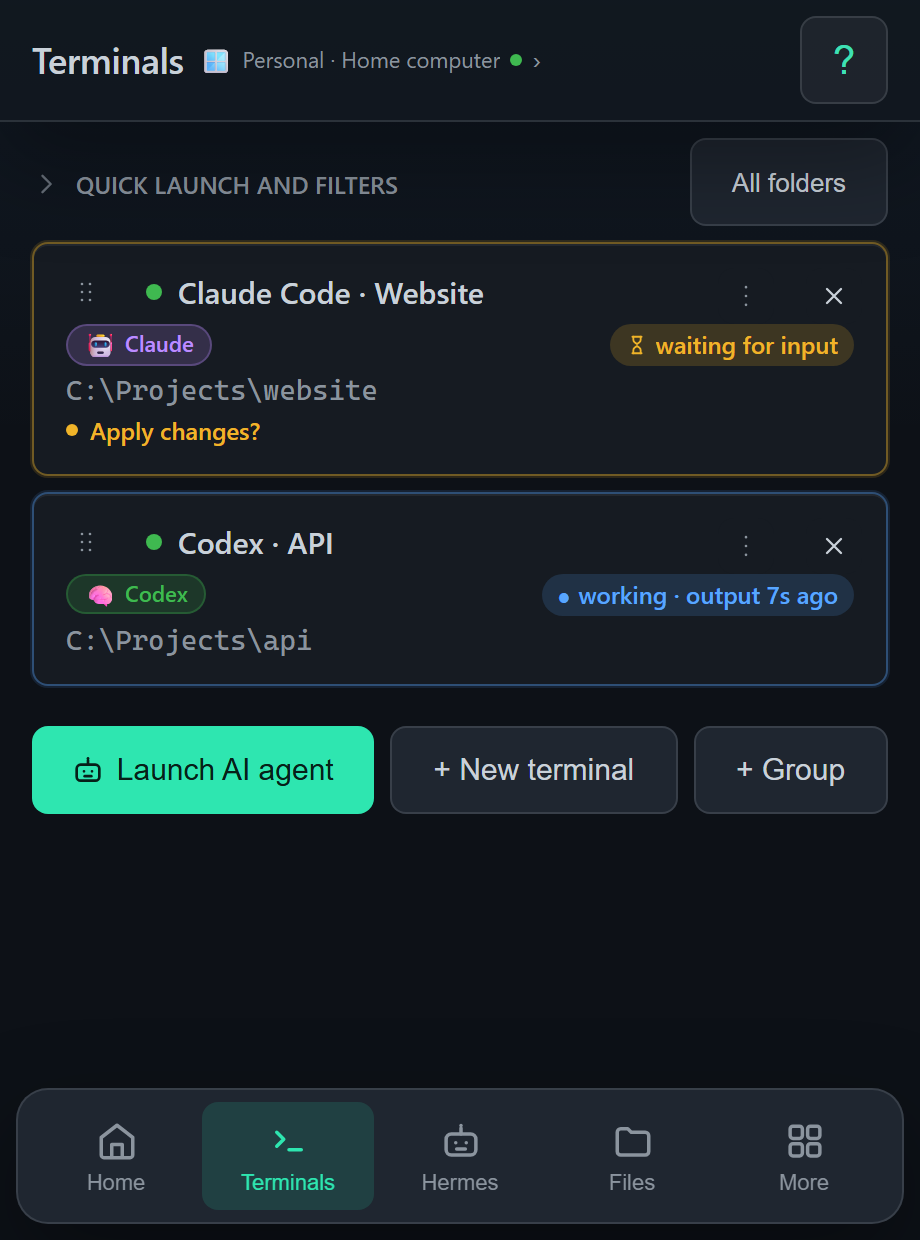
Real Remotai interface, example tasks.
// briefly about the product
What is Remotai
Remotai - convenient remote access to your AI agents. Claude Code, Codex and other agents work on your computer or server, with your projects, files and familiar environment. You run tasks, read the result, and respond to agents from your phone or other PC.
Install Remotai on a machine with agents, add it to your account using a code or QR and open the terminals. The machine must remain turned on and connected to the network. Files, SSH and desktop are available nearby when needed for a task.
- AI agents
- Claude Code, Codex, Kimi, Gemini, Aider and OpenCode
- Computers
- Windows 10/11, macOS 12+ and Linux amd64/arm64
- Phone
- Android 7+, iPhone/iPad in browser, Telegram Mini App
- Access
- Add by code or QR, manage through your account
- Screen
- Windows and Linux with X11. On Mac - terminals, files and SSH; The Mac screen itself is not yet accessible.
- Cost
- On your computer locally - for free. Servers and cloud access - 7 days without a card, then from 900 ₽/month.
// possibilities
Everything for working with agents at a distance
Full-fledged terminal, like on a computer
From the phone, the same terminal opens as on the computer, and not a stripped-down chat: it’s the same session. Launch Claude Code, Codex, Kimi, Gemini, Aider and OpenCode, enter commands, scroll through the output, answer the agent’s questions, press Esc and Ctrl+C. Everything that can be done on a computer can be done on a phone. You can see who is working and who is waiting for your answer.
Continue where you left off
If you started working with an agent on a computer, continue using your phone. Work on the computer is not interrupted: the agent remains in the same terminal, and from the phone you see the same screen. Sessions and history are saved when Remotai is restarted and auto-updated. Team remotai attach opens the same session in a regular terminal on a PC.
Check the result on the screen
Open your computer screen to check the agent's output or perform an action in a graphical application. A virtual browser is available on a server without graphics. Computer Screen supported on Windows and Linux with X11; Not yet available on Mac.
Work with agents on the server
Connect your Linux server to Remotai or open an SSH terminal. Launch agents in a server environment and return to their tasks from your phone. Unknown SSH host is confirmed by fingerprint.
Project files nearby
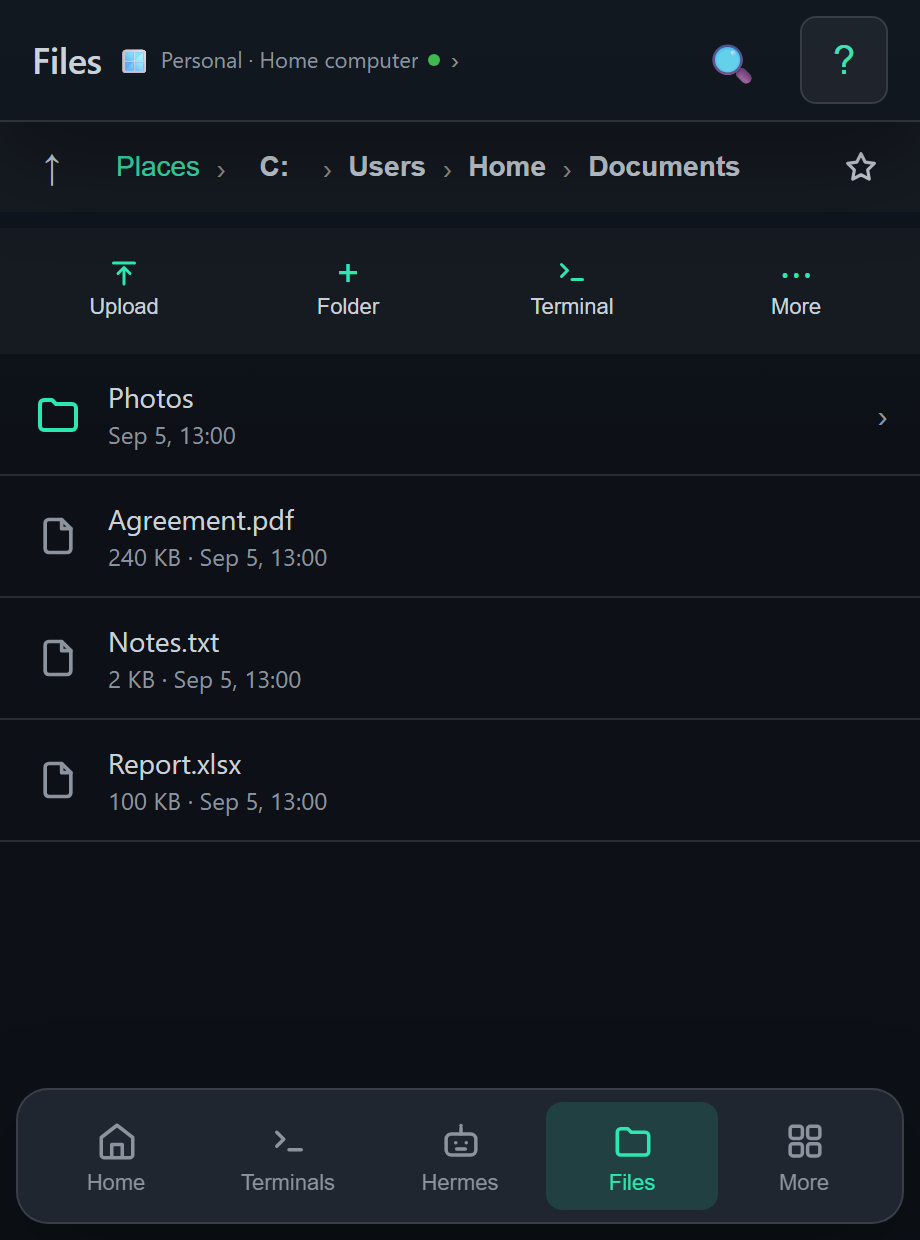
Find and download the result of the agent’s work, transfer the required file. Next is the load on the processor, memory and processes to understand what is happening on the machine.
Only your devices
Add a computer using a one-time code or QR. Then manage from the devices you're signed into. The code confirms access to the desired computer, and the list of connected machines is available in “My Computers”.
Updates itself
New versions arrive on their own: the application checks the cloud, downloads and softly restarts when you close the window. The terminals do not die in this case.
// scripts
Choose your case and see how it works
Launch an agent and go on business
Claude Code, Codex, Kimi, Gemini, Aider, OpenCode: Remotai itself sees which agent is running on the PC and what it is doing. When the agent is waiting for confirmation, the question comes to the phone, and you answer with one tap.
- 1. Open your home PC terminal directly from the application
- 2. Launch the agent and set the task in your own words
- 3. Confirm actions and take the result wherever you are
One computer, the remote control is always at hand
Application for Android, web version for iPhone and any browser, mini-application in Telegram. We started in one place and continued in another: sessions and terminals are not torn.
- 1. Android: Install APK from this site
- 2. iPhone or someone else's computer: open remotai.ru/app
- 3. No installation at all: bot in Telegram
All servers in one list
SSH terminal to any host directly from the application: keys, passwords, fingerprint confirmation. And one command turns the server into a full-fledged Remotai device: terminals, files and monitoring next to your home PC.
- 1. Connect via SSH from the application, just like in Termius
- 2. Or install the agent with one command and scan the code
- 3. Monitor CPU, memory and disks, reboot from phone
Chrome where there is no desktop
On a server without graphics, Remotai brings up a virtual browser. You see its screen and control it from your phone: authorizations, checks, parsing, everything that requires real Chrome, not curl.
- 1. Open Screen on the connected Linux server
- 2. The virtual browser will rise on its own
- 3. Click, enter text, take screenshots
It's like taking your home PC with you
Select your computer, then open Files or Display. You can download a document or work at your desktop from your phone. The screen is available on Windows and Linux with X11; on Mac use files and terminals.
- 1. Open the screen and work as if sitting at a desk
- 2. Find the document you need in the "Files" section
- 3. Download the file to your phone or other computer
Full control without leaving the messenger
The bot receives the couple's code from the PC screen and opens a mini-application directly in the chat. Group topics are tied to different agents: in one Claude fixes the build, in another Kimi writes a script.
- 1. Send the bot a code from your computer screen
- 2. Open a widget directly in a chat
- 3. Divide agents into group topics and manage each one
// how to start
From the task to your computer
// how much does it cost
Locally - free. Servers and cloud - by subscription
Local work on your computer: terminals, agents, files and screen - free forever. Servers, SSH/SFTP and port forwarding are included in Pro.
Servers, SSH/SFTP, port forwarding and cloud access: 5 devices, terminals and agents without restrictions. The first 7 days are free, no card required. VPS rental is paid separately.
computer fleet and other people: 25 cloud devices, screen priority, three participants included.
Payment via SBP or card in 30 days. There are no automatic debits. You can extend access manually - in your personal account.
// direct answers
How to work with AI agents through Remotai
How to start working with AI agents from your phone?
Click "Get Started" and connect the computer or server where your agents are running. On your phone, log into your Remotai account, open the connected machine and the “Terminals” section. Start an agent or continue its session in Remotai: you can read the result, submit tasks and answer questions.
Where do agents work and what is needed to run them?
Agents work on your computer or server, with your files and environment. Remotai gives you remote access to them. The installation and accounts of the AI agents themselves are configured separately. The machine with the agents must remain turned on and connected to the network.
How to control a computer from your phone via Remotai?
Click “Start”, select “Connect a computer” and install Remotai on the desired machine according to the instructions for its system. On your phone, log into your account and add a computer using the code or QR. Files and terminals are available on Windows, Mac and Linux. The connected computer's screen runs on Windows and Linux with X11; The Mac screen itself is not yet accessible.
Do you need public IP address or port forwarding?
No. The computer itself establishes an outgoing TLS connection with the cloud relay Remotai, so there is no need to configure a router, VPN or public IP address.
What devices does Remotai work on?
You can connect Windows 10/11, macOS 12+ (Apple Silicon and Intel) or Linux amd64/arm64. Files, terminals, SSH, monitoring, and AI agents are available on the Mac, but the Mac screen itself is not yet accessible. The Linux screen requires an X11 session; work with Wayland has not yet been tested. You can control another computer from a browser on any of these systems, from an iPhone/iPad, Android 7+ or via Telegram.
What AI agents are supported?
Remotai recognizes Claude Code, Codex, Kimi, Gemini, Aider and OpenCode in the PTY terminal, shows the agent status and allows you to answer confirmation requests from the phone.
Is it possible to connect to Linux servers via SSH?
Yes. Remotai has an SSH center with hosts from ssh config, SFTP, ProxyJump and port forwarding. The Remotai agent itself is also installed on Linux with one command.
What does Remotai store in the cloud?
The cloud stores account and linked device data, minimal product analytics events, and voluntarily sent support messages. The contents of terminals, commands, files, screen, clipboard and clicks are not saved as analytics. Details - in privacy policy.
How much does Remotai cost?
Local work on your computer is free forever. Servers, SSH/SFTP, port forwarding and cloud access - 900 RUR/month (Pro, 5 devices) or 1,990 RUR/month (Fleet, 25 devices); the first 7 days are free and without a card. VPS rental is paid separately.
Your agents are always at hand
Connect the computer or server where the agents are running. Remotai will show you the appropriate instructions so you can continue working from your phone or another PC.
Can't download or install? Write to support.
We will help with installation
Remotai does not download, does not open or shows an error? Write what system you have and at what step the problem occurred. You can copy the error text.
Chat works directly on the site. Sign in to your account using an accessible method to send a message and receive a response. There is no need to install the application or connect your computer.